Canva and Figma are two differentiating strengths in the emerging world of design tools. Canva is the most user-friendly, and Figma is the most powerful to use based on the type of project. Canva is popular among marketers for its wide range of templates and ease of use. Whereas Figma is a popular solution in terms of professional UI/UX design and the high level of collaboration capabilities. Since companies consider their options depending on the size of the team and the needs in particular, it is essential to know the variations in features, prices, and uses. This blog will explore Canva vs Figma and understand the most appropriate option in your design process. Also, we will understand why the best digital marketing agency in Navi Mumbai, such as Startup Rabbit, prefers these tools in their work.
What Is Canva?
Canva Overview
Canva is an easy-to-use graphic design platform that lets you create visually appealing content with a wide range of AI-driven themes, stock photos, and editing tools. It works best for small businesses, marketers, and content providers who need polished images for social media, slideshows, and marketing materials quickly but don’t have much design experience.
Who Should Use Canva?
Canva is an all-around easy-to-use design tool for beginners, marketers, social media managers, and small business owners. Canva creates quick, professional graphics without requiring advanced design knowledge. Under the pre-size option, it is very useful when you have to publish on social media, create a presentation, or business documents.
Pros and Limitations of Canva
Pros
- A drag-and-drop system can be amazingly simple to work with. Thus, even a non-programmer can do it.
- Provides you with a massive library of themes, stock images, icons, and other design elements, so you do not need to search for them on other sites.
- With real-time teamwork items, the team can co-work and comment on in a real-time environment, without considering their locations.
- A web-based system is accessible on any device that has an internet connection, with cloud storage and auto-saving incorporated, to make it convenient.
- Free with full access, where one can upgrade to a paid option, which unlocks additional features, including Brand Kit, Magic Edit, and background remover.
Cons
- The lack of customization and sophisticated design options in comparison to the professional programs, such as Adobe Photoshop or Illustrator, limits the creativity when it comes to more challenging projects.
- Needs a consistent internet connection to use; it cannot be accessed offline, and this can be an issue in places with low connection.
- There are a few features of export options and file formats (e.g., no support for PSD or AI), which complicate cooperation with professional designers.
- Some designs may have a generic effect in cases where they overdepend on templates and stock bits and thus fail to be distinctive in terms of a brand.
- Paid plans give you access to certain features, themes, and special assets, while the free plan limits your content and storage space in a big way.
What Is Figma?
Figma Overview
Figma is a design, UI/UX, and system app that allows designers and makers to collaborate on design prototypes and tools. It offers efficient editing of vectors, interactive prototyping, reusable objects, and live collaborative design, which is appropriate in complex web and application design projects and processes with precision and collaboration in teams.
Who Should Use Figma?
Figma is a collaborative web-based design tool for web designers, product managers, and developers. This app is to create websites, mobile applications, and interactive prototypes. It works especially well on the teams that require real-time collaboration, auto-layers, and design-to-code handover in Dev Mode.
Pros and Limitations of Figma
Pros
- Work together to design files by accessing in real time, to accelerate feedback and shorten timescales.
- A browser-based, cloud-based platform that can be accessed without any installation on any device and is designed for use in distributed teams.
- An easy-to-use interface enables novices and expert designers to start fast and be fruitful.
- Effective versioning and autosaving capabilities monitor modifications and allow undoing, and reduce the risk of data loss.
- Couples with such popular tools as Slack and Jira, boosting the efficiency of the workflow and communication in teams.
Cons
- Does not actually have a functional offline experience as it requires a reliable internet connection without an appropriate offline option.
- New people to the software design or users who have to switch to more complex software may encounter a steep learning curve.
- Lack of customization options relative to its competitors, particularly in high-end design options and interface customization.
- Large groups may find version control difficult because the free version restricts viewing the entire history of versions.
- The workflow may be interrupted with occasional usability problems, crashes, and interface changes, which may necessitate a restart.
Canva vs Figma Comparison: Key Differences Explained
| Category | Canva | Figma |
| Primary Goal | Fast content creation and high output. | Precise and scalable UI and UX design. |
| Target User | Non designers, marketers, individuals, small teams. | Professional designers, developers, large design teams. |
| Ease of Use | Very easy. Drag and drop. Template first. Great for beginners. Winner | Harder to learn. Requires shortcuts and vector skills. |
| Core Design Type | Raster based graphics and template editing for social and print. | Vector based design, components, and responsive layouts. |
| Design Starting Point | Search for a template and start editing. | Start with blank frames and create everything manually. |
| Performance | Fast, but may slow down with heavy effects or text styles. | Extremely fast even with big files and many layers. Winner |
| Best For | Social posts, marketing graphics, posters, print work, presentations. | App design, website layouts, prototypes, design systems, developer handoff. |
Figma vs Canva Features Comparison
| Feature Category | Canva | Figma |
| Template Library | 600k+ ready-to-use | Component-based building |
| AI Integration | 500 monthly uses | Limited AI features |
| Collaboration | Real-time editing | Advanced team features |
| Learning Curve | Almost none | Moderate to steep |
| Professional Output | Good enough for most | Excellent |
| Brand Management | Brand kits | Design systems |
| Mobile Capability | Full mobile app | Limited mobile |
| Offline Access | Limited | No |
Canva vs Figma Pricing: Which Is More Affordable?
Canva Pricing Plans Explained
| Canva’s Plan | Pricing |
| Individual Annual | $119.99 |
| Team Annual (5 users) | $299.99 |
| 3-Year Individual Total | $359.97 |
Figma Pricing Structure
| Figma’s Plan | Pricing |
| Individual Annual | $144 |
| Team Annual (5 users) | $540 |
| 3-Year Individual Total | $432 |
Figma vs Canva Pricing: Free vs Paid Features Comparison
| Platform | Individual Annual | Team Annual (5 users) | 3-Year Individual Total |
| Canva | $119.99 | $299.99 | $359.97 |
| Figma | $144 | $540 | $432 |
Figma vs Canva for beginners: Which is better
As a beginner, Canva is more suitable when you need to create simple infographics and social media posts, as the application has a drag-and-drop editor and numerous templates. Also, it is fast. Figma is the most appropriate option for those who want to focus on interface and user experience, prototyping, and advanced website design. More so, it is more creative and true.
Canva vs Figma for Business: Which Tool Is Better
Brand Kit and Team Context functions in Canva can help ensure brand consistency, which can be beneficial for small businesses and startups.
Real Use Cases: When to Use Canva vs Figma
- Social Media: Canva has excelled in pre-sized templates across all platforms, automated functions such as Image to Video, Style Match, Magic Video, and a built-in Content Scheduler. Figma does not have them, as the social graphics will need to be sized manually.
- Designing Website and App: Figma is commonly more professional than Canva. It is because of the 2026 updates. Also, Figma Sites are used to create dynamic websites. Design teams prefer converting wireframes into prototypes and direct deployment.
- Presentations: Canva provides attractive templates and Guided Presentations using AI to easily use and present in a browser. Figma Slides are designed to provide greater control over design and support embedded prototypes; hence, they are suitable for design documentation.
- Video Content: Canva provides Video 2.0, which has added a timeline editor and AI capabilities, and it is an ideal platform to create content. Video editing is not supported by Figma.
- Collaboration: Figma stands as the leader in real-time collaboration and version control. Nevertheless, Team and Business plans of Canva have enhanced marketing teams in terms of collaboration.
Design Tools Comparison: Canva vs Figma vs Other Alternatives
How Canva and Figma Compare with Other Design Tools
| Feature Category | Canva | Figma | Adobe Express |
| Template Library | 600k+ ready-to-use | Component-based building | 20k+ templates |
| AI Integration | 500 monthly uses | Limited AI features | 250 monthly credits |
| Collaboration | Real-time editing | Advanced team features | Basic sharing |
| Learning Curve | Almost none | Moderate to steep | Moderate |
| Professional Output | Good enough for most | Excellent | Very good |
| Brand Management | Brand kits | Design systems | Brand libraries |
| Mobile Capability | Full mobile app | Limited mobile | Mobile app available |
| Offline Access | Limited | No | Limited |
When to Consider Alternatives
Use alternatives when Canva is too uncontrollable technically or Figma too high in terms of learning curve/price.
Choosing the Right Tool for Your Workflow
When choosing the appropriate tool for your work, use the following strategies:
- Integration with other content plans: The more the design allows you to integrate with your schedule tools, the easier it is to use.
- Asset management implies the identification of design content and reusing it without any loss.
- Brand consistency: Being consistent throughout your group in terms of design.
- An approval process is accomplished after a communicating through email.
- Performance Measurement: People should know what is important to them. and adjust to that.
Common Mistakes When Choosing Between Canva and Figma
Mistake 1. Inaccurate Marketing and Product Use Case.
It is a grave mistake when using Canva for complex UI/UX design/App development. It does not offer the accuracy, stacking, and prototyping features of digital products. But it is best for small, fast-moving marketing work (social media posts, flyers). Do not use Figma; it is time-consuming, as it has to be created manually, compared to Canva, which is a drag-and-drop tool.
Reality
Canva is used to create social media and presentations, and Figma is used to create apps and websites, as well as prototypes.
Mistake 2. Underestimating the Learning Curve.
It has been assumed that Canva is easy to use, and thus, it can be used to create high-quality professional UI, or that I can learn Figma within a few hours.
Reality
Figma seems to have a high learning curve, though it does provide full layout control and so-called auto layout. It is important in responsive design, a feature not available in Canva.
Mistake 3. Disregarding Development Handoff Requirements.
Selecting Canva to create a project that is required to be developed by a coding team.
Reality
Figma is flexible on developer handoff, with CSS, Swift, and Android XML code. Canva lacks developer tools and is used to create flat images or PDF artworks.
Mistake 4. Using Templates, rather than Components.
Attempting to control a huge and consistent brand design system in Canva. Canva is relying on templates, something that makes it harder to scale.
Reality
Figma uses components and variants, which, in turn, enable you to edit one piece across a project in one of the world and maintain a rigorous consistency.
Mistake 5. Misunderstanding Workflow Efficiency
If you choose Canva just because it’s thought to be easier, you will have to do the same work manually for hundreds of different files.
Reality
Although Canva is quicker on a one-off basis, Figma is 10 times quicker on complex, iterative, or responsive design tasks once mastered.
How to Choose Between Canva and Figma
- Workflow Integration: Select the ones that can integrate with other apps you already possess.
- Cost: Determine if you require a free tool (such as Canva) or a paid program (such as Figma).
- Collaboration: Teams operating in different locations should use browser-based applications such as Figma instead of software that is on a desktop.
- Compatibility: It helps in making sure that the tool works with your system. Microsoft: Do not use Sketch with Windows.
Role of Design Tools in Digital Marketing Success
How Design Impacts Branding and Engagement
Design tools make logos, color schemes, and typography consistent, and this creates trust and long-term brand recognition.
Using Design Tools with Marketing Strategies
The design tools are effective in maximizing the call-to-action (CTA) buttons, forms, and layouts, which resulted in improved conversion rates and increased sales.
Working with a Digital Marketing Agency for Better Results
Partnering with a digital marketing agency in Vashi, such as Startup Rabbit, clients can achieve better ROI results at a cost-effective range. Furthermore, they can also receive stunning and attractive creatives and designs for their brand.
Key Takeaways: Canva vs Figma Simplified
- Canva is the ideal tool for social media, marketing content, and presentations, with a simple drag-and-drop interface and millions of templates and stock images.
- On the other hand, Figma is more suited to building websites, interfaces of mobile applications, and prototyping with more control and a steep learning curve in comparison.
- Canva can be used to do team editing, but Figma can be used to do group work (including cursor tracking).
- Figma, too, has far more advanced tools for vectors, and Canva is raster-based and has a handful of vectors.
Conclusion
There is no distinct winner, and Canva vs Figma is a close match. Canva can assist artists and marketers to create things in a short time, and Figma can assist businesses to create designs that can be used by numerous individuals. Find out which of the two free plans is better for your job. Canva B2B social marketing suits you well in Mumbai, and Figma is scaling digital products. Finally, partner with an SEO agency in Navi Mumbai, such as Startup Rabbit, that uses these tools to increase ROI for clients.
FAQs
Figma is a professional-grade software designed to work in UI/UX design, prototyping, and very highly detailed vectors. Product designers and developers may find it helpful. Conversely, Canva is a non-design software that is rapid and template-driven. They enable the creation of graphic designs, marketing content, and other assets for social media, and are geared more towards amateurs.
Canva is a user-friendly, template-based, and visual design tool. It is used for creating images, marketing materials, and social media content for non-designers. Figma, however, is a strong, professional software that can be used along with the UI/UX design, prototyping, and the collaborative design of the products
Figma will suit better professional UX/UI, web, and product designers.
Yes, new users can also become familiarized with Figma as it is easy to use and is also based on an intuitive interface, having a very painless learning curve, and with plenty of teaching guides that are free.
Canva is widely regarded as the most versatile tool in social media design. It comes with 2 million-plus templates, artificial intelligence, and simple time-frame scheduling for both amateurs and professionals.



Related items
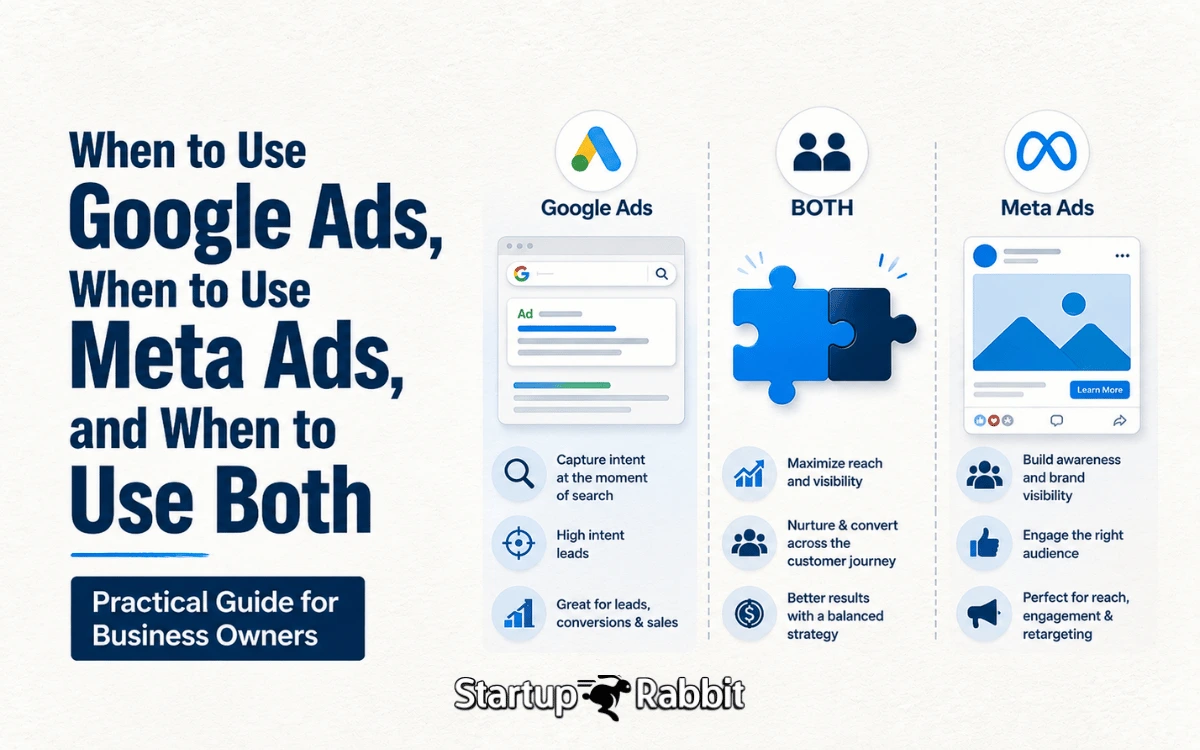
Almost every business owner eventually asks the same question: should our ad budget go to
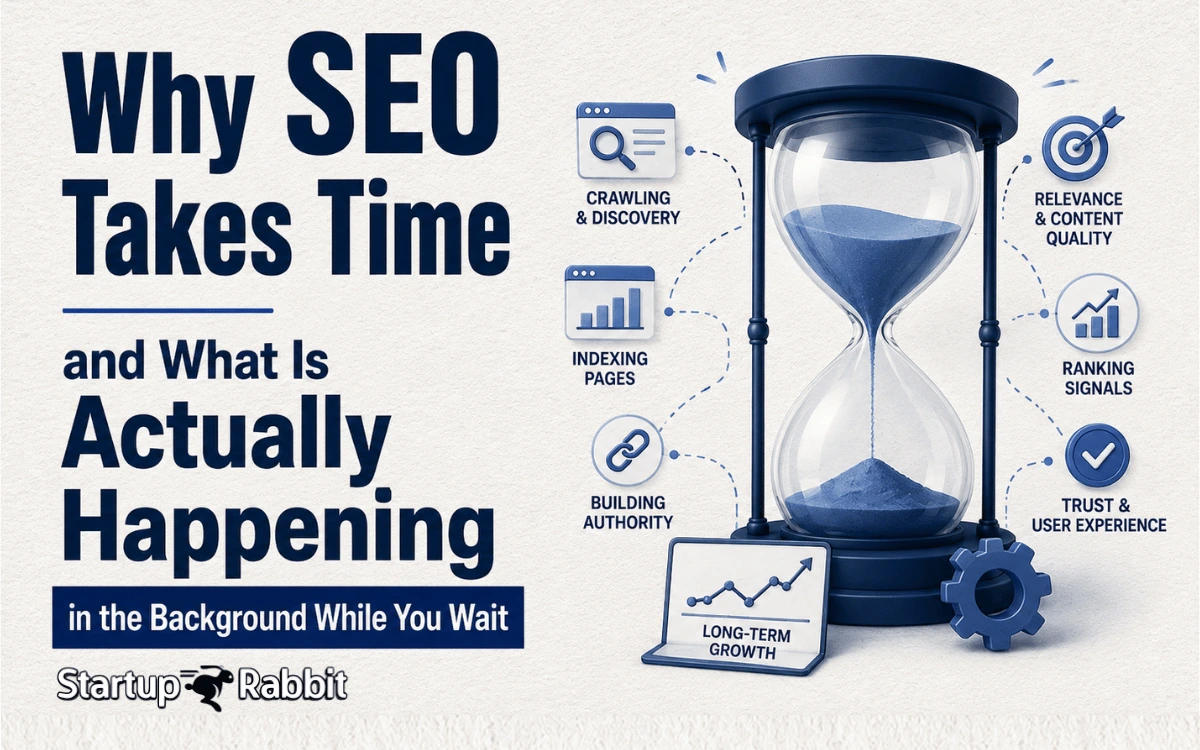
Every business owner asks some version of the same question within weeks of starting SEO:
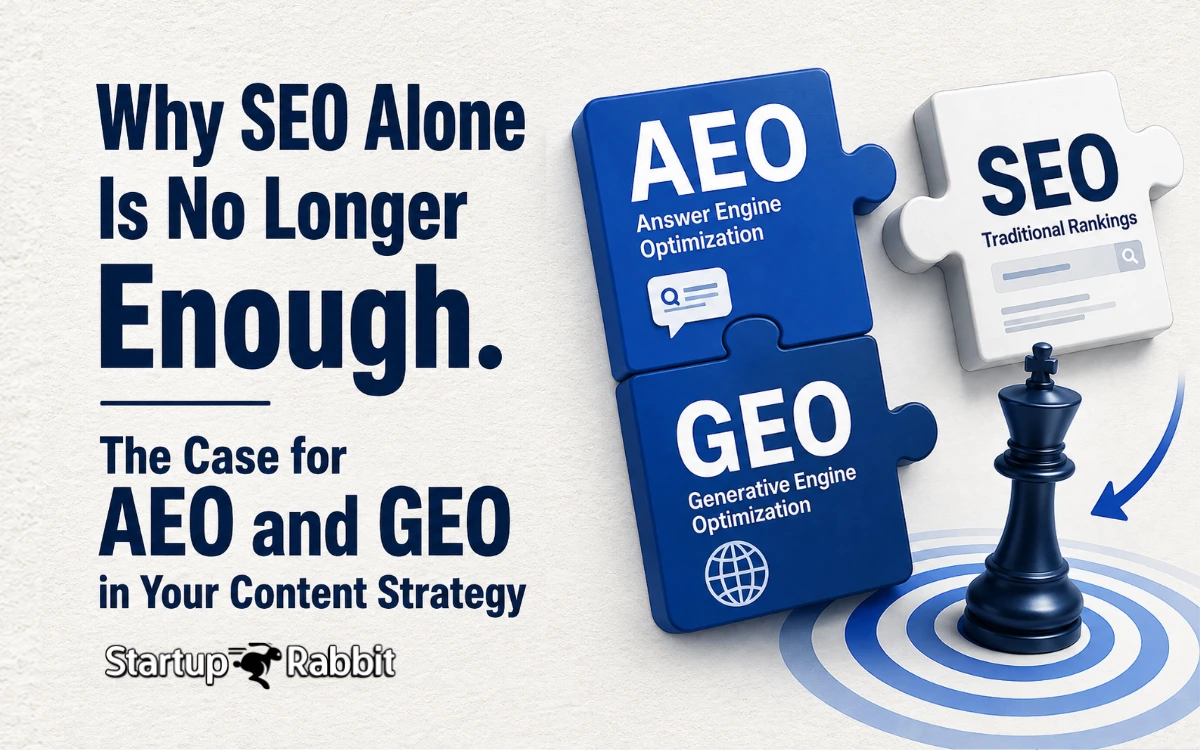
Search has evolved from blue links to a rich mix of answers, conversations, and AI-generat